
Troubleshooting
Troubleshoot Hubs, Labels, and Publishing
Identify the failing stage—location, Hub, pairing, preview, sync, or publishing—and restore the label safely.
Before you begin
Confirm these items before you make changes:
- Select the location where the product and physical label are actually used.
- Keep the printed label barcode and product or variant name available.
- Check the current pairing, publish, broken, battery, and Hub states before changing anything.
Hub Required or Hub Offline
- Confirm the Shelva Hub is connected to power.
- Confirm Ethernet is connected to an internet-enabled router.
- Wait up to five minutes.
- Confirm the Hub belongs to the selected location.
- Refresh the Hub status.
- Open Hardware and confirm whether it shows Online or Offline.
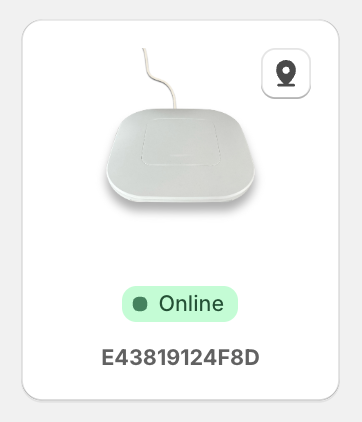
After checking power and Ethernet, the Hub card should change to Online. An Offline-state capture is still needed for this troubleshooting example.
Label is paired but not showing product information
- Confirm the label is not only Paired; it must also be Published.
- Confirm it is a physical label rather than a simulated label.
- Confirm the location’s Hub is Online.
- Open Configure and verify the preview.
- Select Save & Publish.
- Wait for Publishing to become Published.
Publish Failed
Check each dependency in order:
- The correct location is selected and has an online Hub.
- The label is registered to the store and is not marked broken.
- The product is still paired to that label.
- A valid preview is visible.
- The plan’s published-label limit has not been reached.
Retry from Configure or the relevant update history after correcting the failed dependency.
Shopify changed but the label did not
- Confirm the product is managed by Shelva.
- Open Settings → Auto-Sync and confirm automation is enabled.
- Verify the correct global or location-specific policy is active.
- Confirm the product is published and the changed field appears on its selected template.
- Review Instant Sync History or Scheduled Sync History.
- If the prior sync occurred offline, bring the Hub online and publish again.
Cannot pair a label
- The label belongs to the current store and selected location.
- The label is unpaired and not marked broken.
- The correct label size is available.
- A Grand 10.2-inch label is being paired to a multi-variant parent product.
- If the label is already paired, review the replacement confirmation instead of repeatedly scanning.
Low battery or low signal
Low battery means 15% or lower. Use Hardware or POS to identify and flash the affected label.
- Settings can flash low-battery labels red for 30 seconds every 30 minutes.
- Monthly label health reports can summarize battery, pairing, publishing, and location issues.
- For low signal, confirm the correct Hub is online and the label is managed at the intended location.
Broken labels
Use Mark Broken only after confirming that the label should be removed from service. After repair or verification, use Mark Working before attempting to pair it again.
Information to collect for support
- Shopify store name and Shelva location.
- Product and variant name.
- Printed label barcode and label size.
- Time of the failed action.
- Current pairing and publish status.
- Hub Online or Offline status.
- Screenshot of the error and relevant sync-history result.
Use Shelva’s in-app Report a Bug action when available.
What success looks like
The Hub and label belong to the correct location, the label is paired to the intended product, the preview is valid, and a publish completes with Published. If the issue remains, your support report includes enough detail to reproduce the failure.