
Sync and automation
Sync Shopify Changes to Labels
Choose an automatic or manual update strategy and confirm whether each Shopify change reached Shelva and the physical label.
Before you begin
Confirm these items before you make changes:
- The product is managed by Shelva and belongs to an enabled location.
- You know whether one policy should apply globally or each location needs its own schedule.
- For physical updates, the product is already published and the location’s Hub can come online.
What sync updates
Sync can refresh titles, prices, compare-at prices, inventory, general product information, variants, and supported metafields.
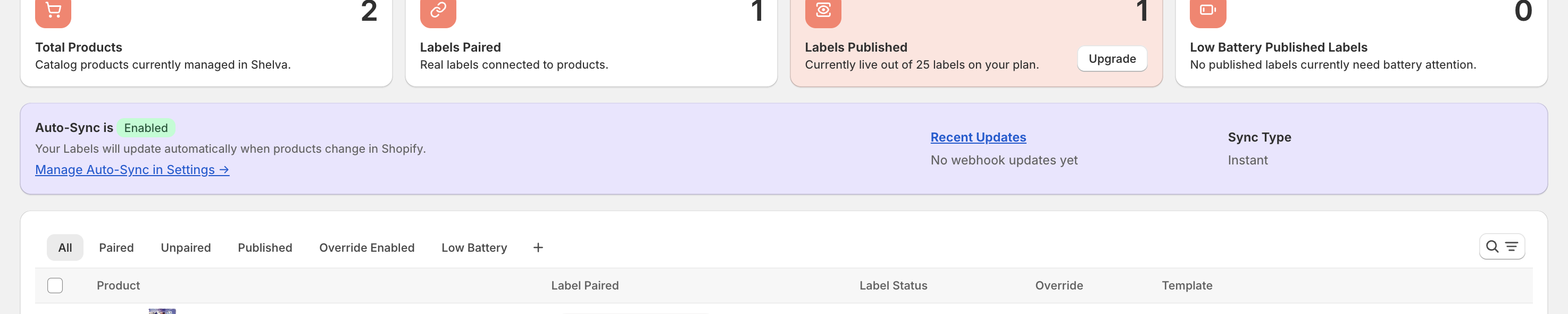
The Dashboard banner shows whether Auto-Sync is enabled and links to its settings.
Configure automatic sync
- Open Settings → Auto-Sync.
- Choose Instant to receive Shopify updates through webhooks, or Scheduled to run daily or weekly at a selected local time.
- Choose Global for one policy across enabled locations, or Location-specific to configure each location separately.
- Review the selected locations and schedule, then save the policy.
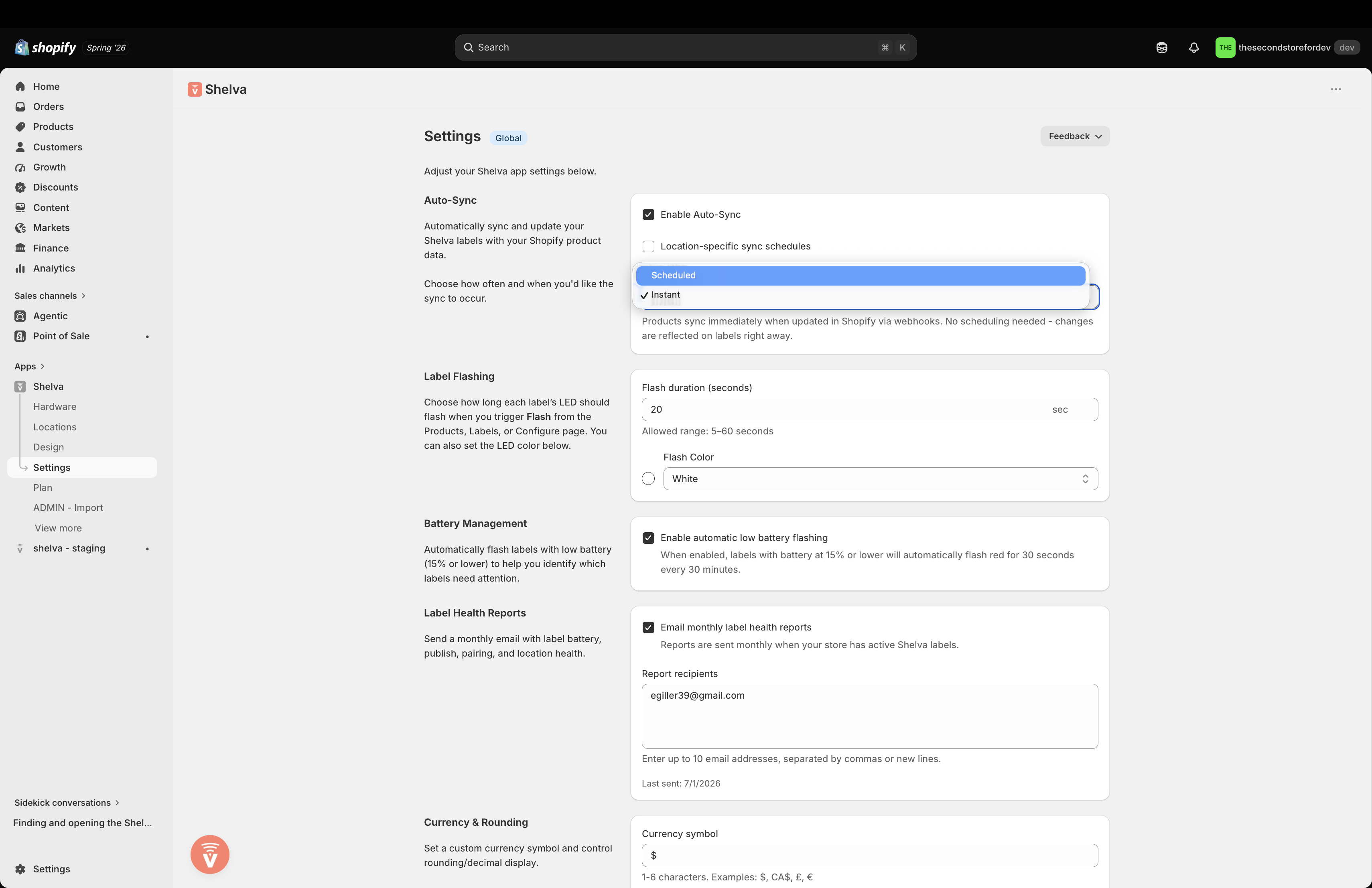
Select the sync type that matches how quickly product changes should reach Shelva.
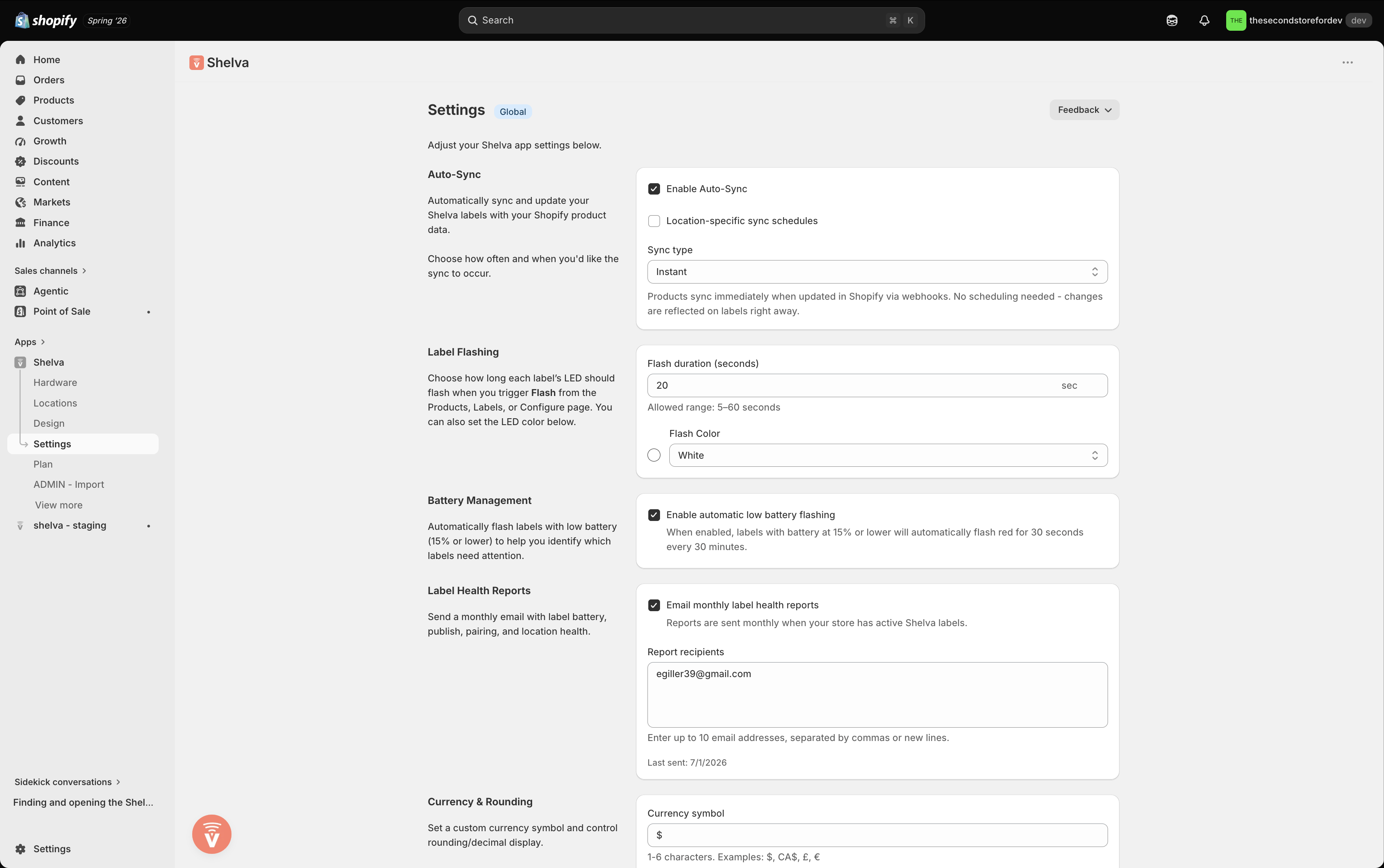
Instant sync listens for relevant Shopify product changes.
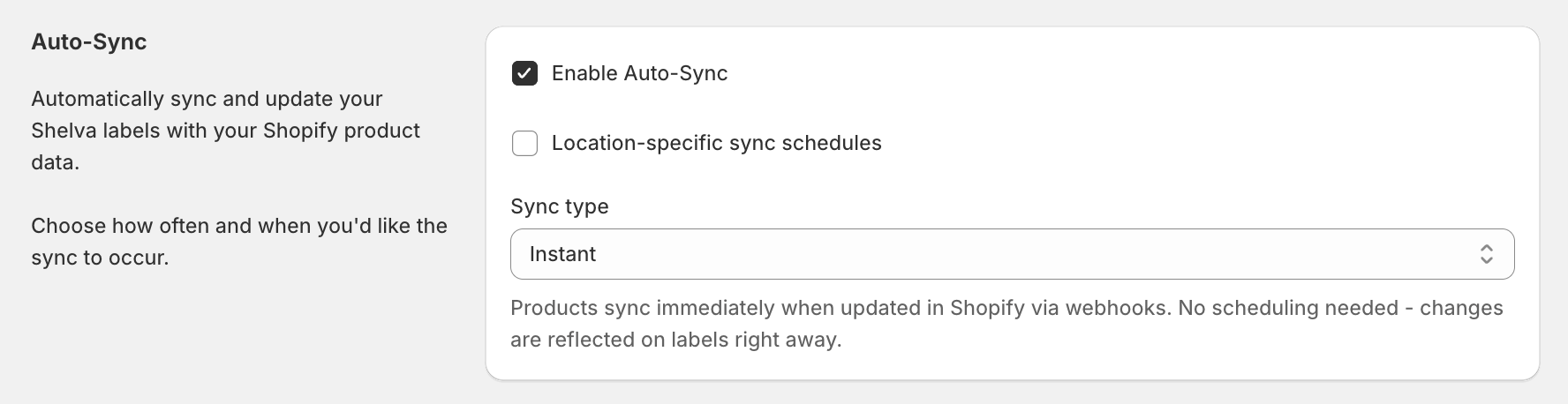
The Instant setting explains how Shopify updates are received.
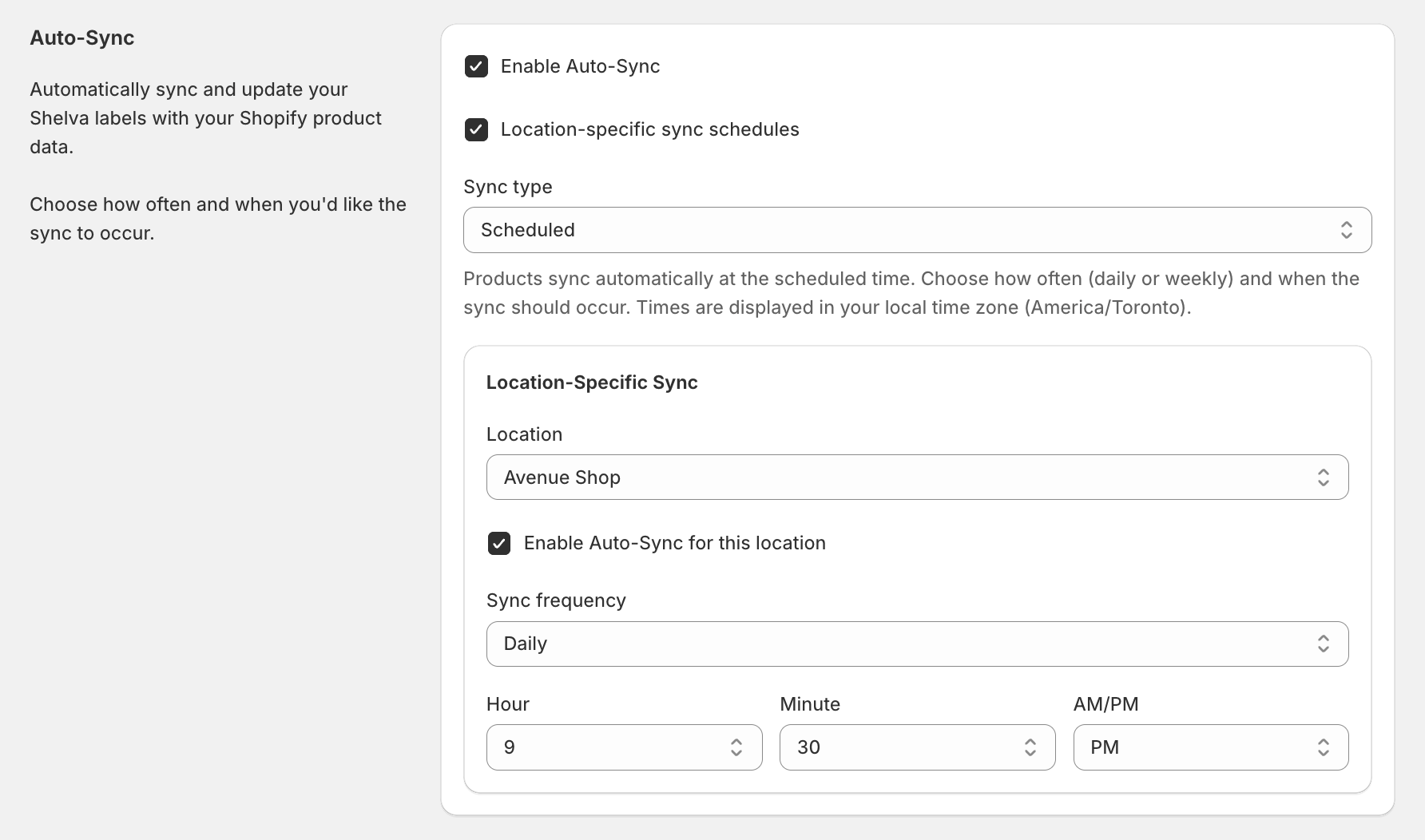
Location-specific policies can run daily or weekly at a selected local time.
Run Sync Now
- Select the correct location.
- Open Dashboard.
- Select Sync Now.
- Review the location and confirmation text.
- Confirm Sync.
- Open sync history to review the result.
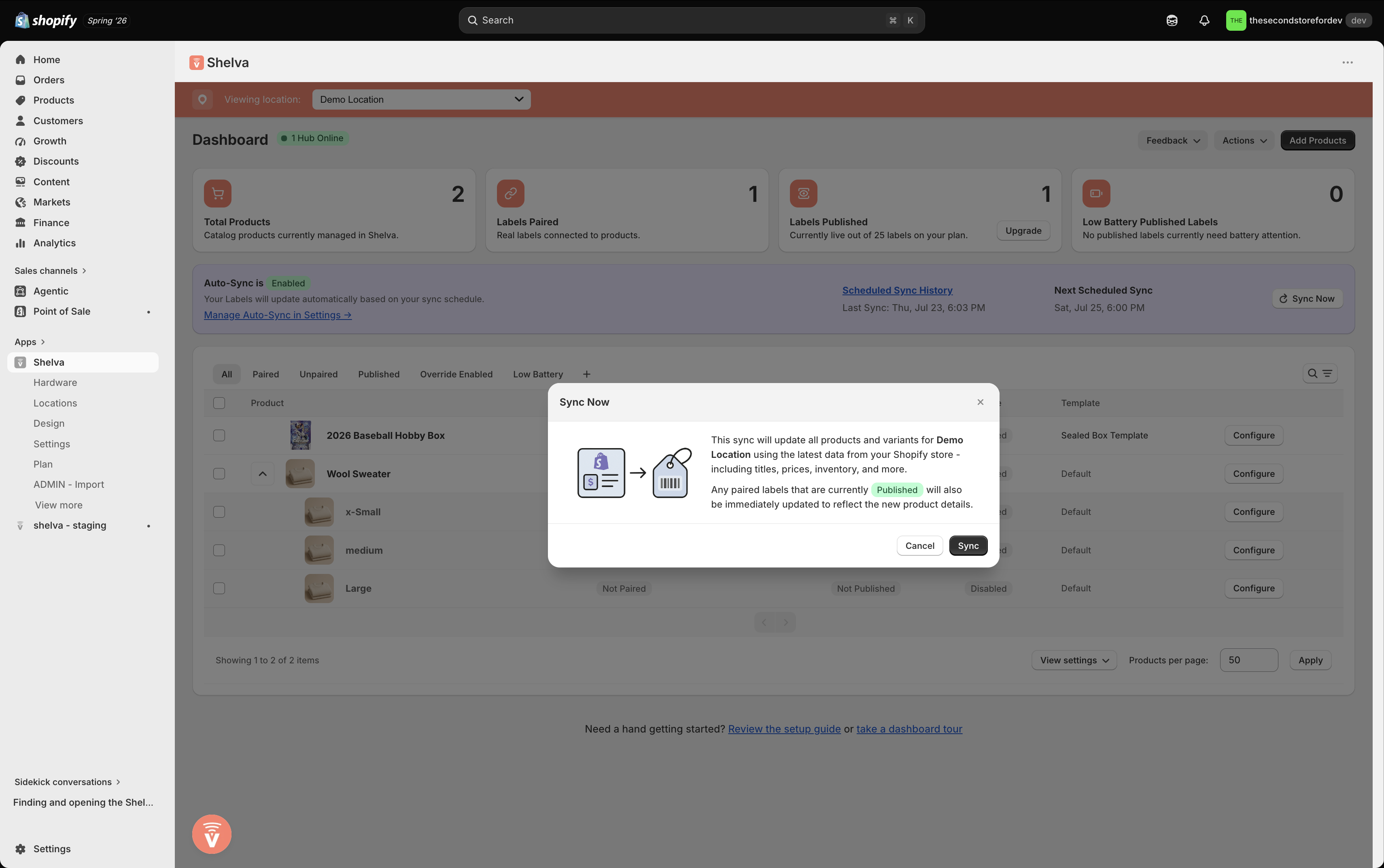
The Sync Now confirmation identifies the location before Shelva refreshes its managed products.
Read update history
Use Instant Sync History and Scheduled Sync History to confirm what happened. Filter by date, expand parent products and variants, and review affected fields.
The relevant change was successfully sent to the physical label.
No label update was needed or the product was not eligible.
The update did not complete; inspect the result and retry when available.
A newer product update replaced the older retry, so the newest state should be used.
What success looks like
The intended policy is active at the correct scope, history shows the Shopify change and affected fields, and published physical labels display the latest relevant values after an online-Hub publish.