
Products and labels
Add and Manage Shopify Products
Add Shopify products to Shelva, understand parent and variant rows, and find the exact product you need to configure.
Before you begin
Confirm these items before you make changes:
- Shelva is installed and at least one location is enabled.
- The products and variants you want to manage are active in Shopify.
- You have selected the intended location, or Global view if you are reviewing multiple stores.
Add products
- Open Shelva’s Dashboard.
- Select Add Products.
- Use Shopify’s product picker to select parent products and/or variants.
- Confirm the selection.
- Wait for the products to appear in Shelva.
Add All Products is optional and may not be available for every store.
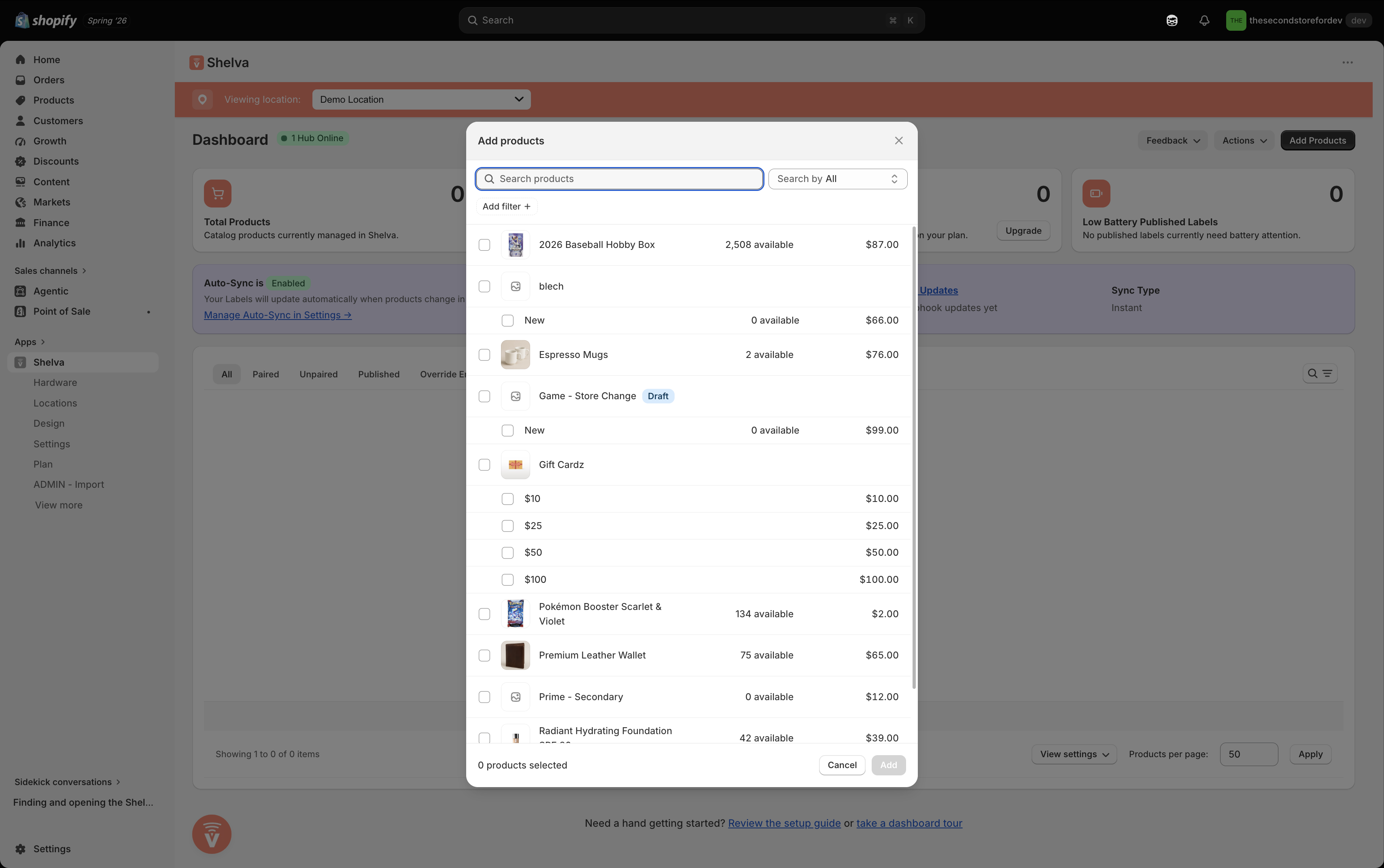
Use the Shopify product picker to choose the products or variants Shelva should manage.
Understand product rows
- Products with multiple variants are grouped under their parent product.
- Each variant can have its own label assignments.
- Shopify’s default variant is treated differently from a real multi-variant product.
- Select Configure to open product data, label assignments, templates, previews, and overrides.
Expand a parent product before pairing when you need to target one specific variant.
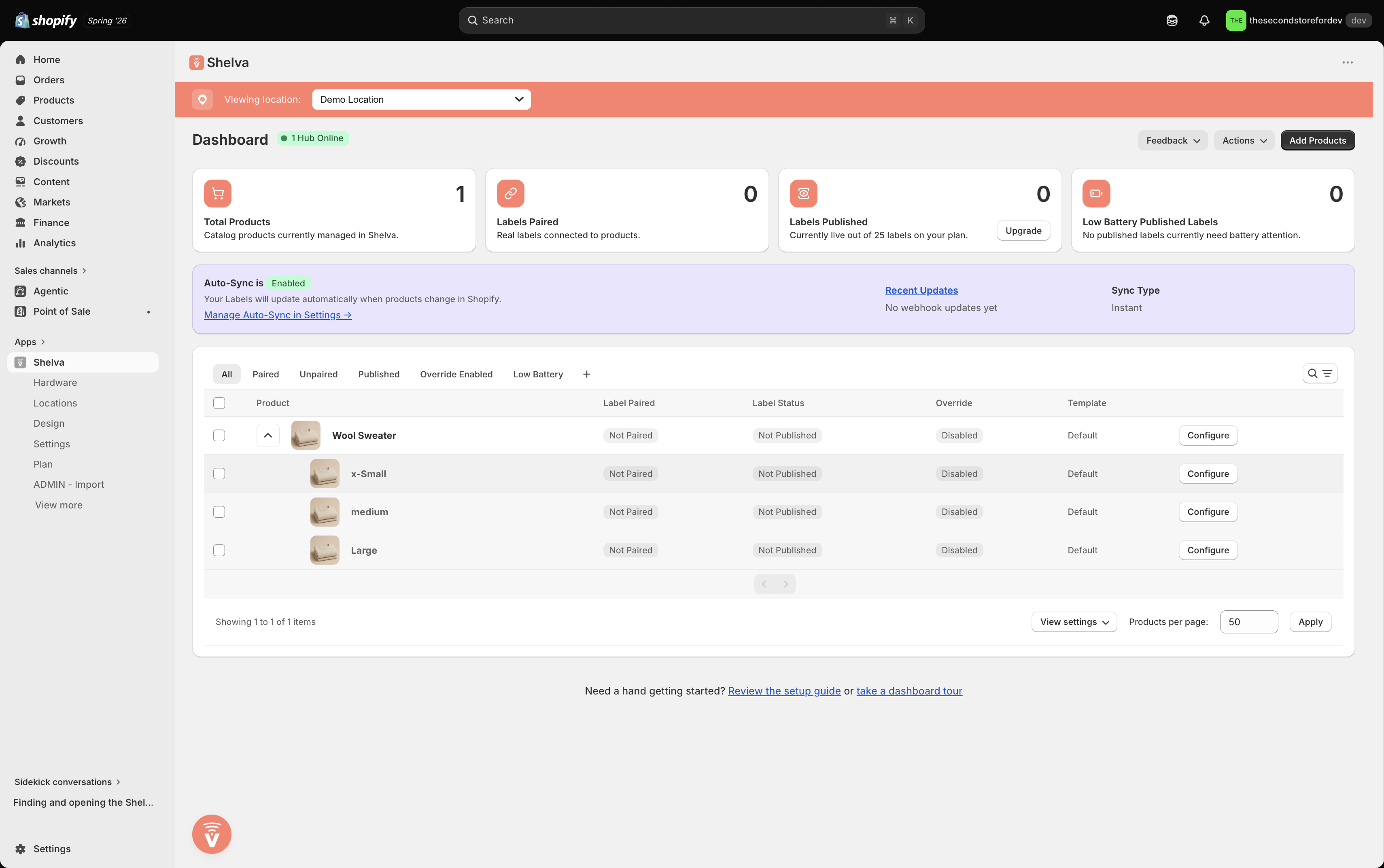
The expanded row reveals each variant and its label status.
Search and filter products
Use the Dashboard tabs to narrow the product list:
- All
- Paired
- Unpaired
- Published
- Override Enabled
- Low Battery when viewing one location
Search accepts a product or variant title, vendor, SKU, product barcode, or Shelva label barcode.
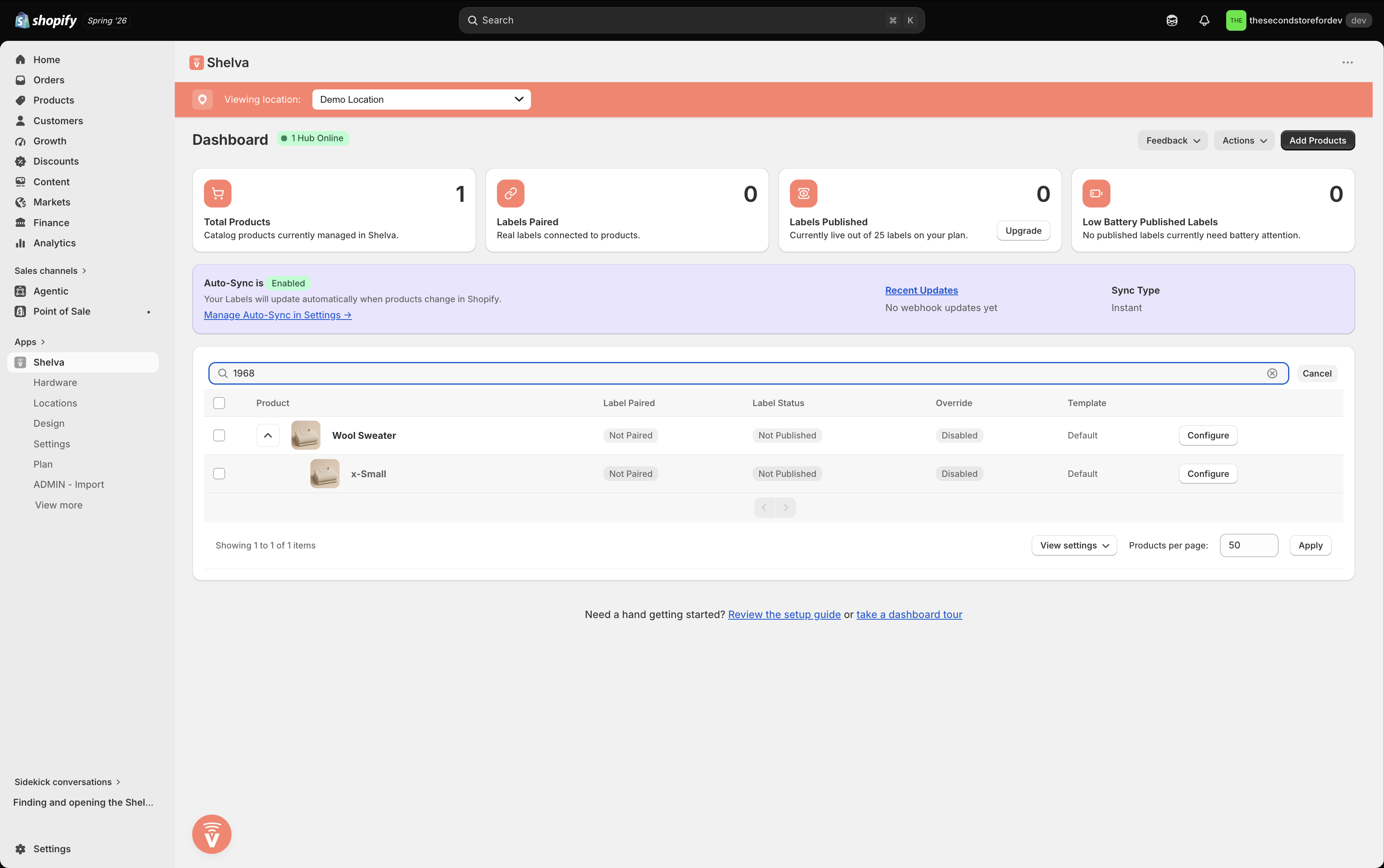
Enter a product or label barcode in Dashboard search to narrow the product list.
Understand location behavior
In location view, actions apply to the selected store. In Global view, review products across all enabled locations.
Product status glossary
At least one label is assigned to the product or variant.
No label is currently assigned.
The assigned physical label received the current design.
A physical label is assigned but has not received a successful publish.
A publish is in progress.
The latest publish attempt did not complete.
At least one label field uses a Shelva-specific value.
An assigned label reports 15% battery or lower.
The assigned template changed after the last successful publish.
What success looks like
The intended products appear in Shelva under the correct location. Parent products expand to show the expected variants, search finds products by the identifiers your staff use, and Configure opens the correct record.
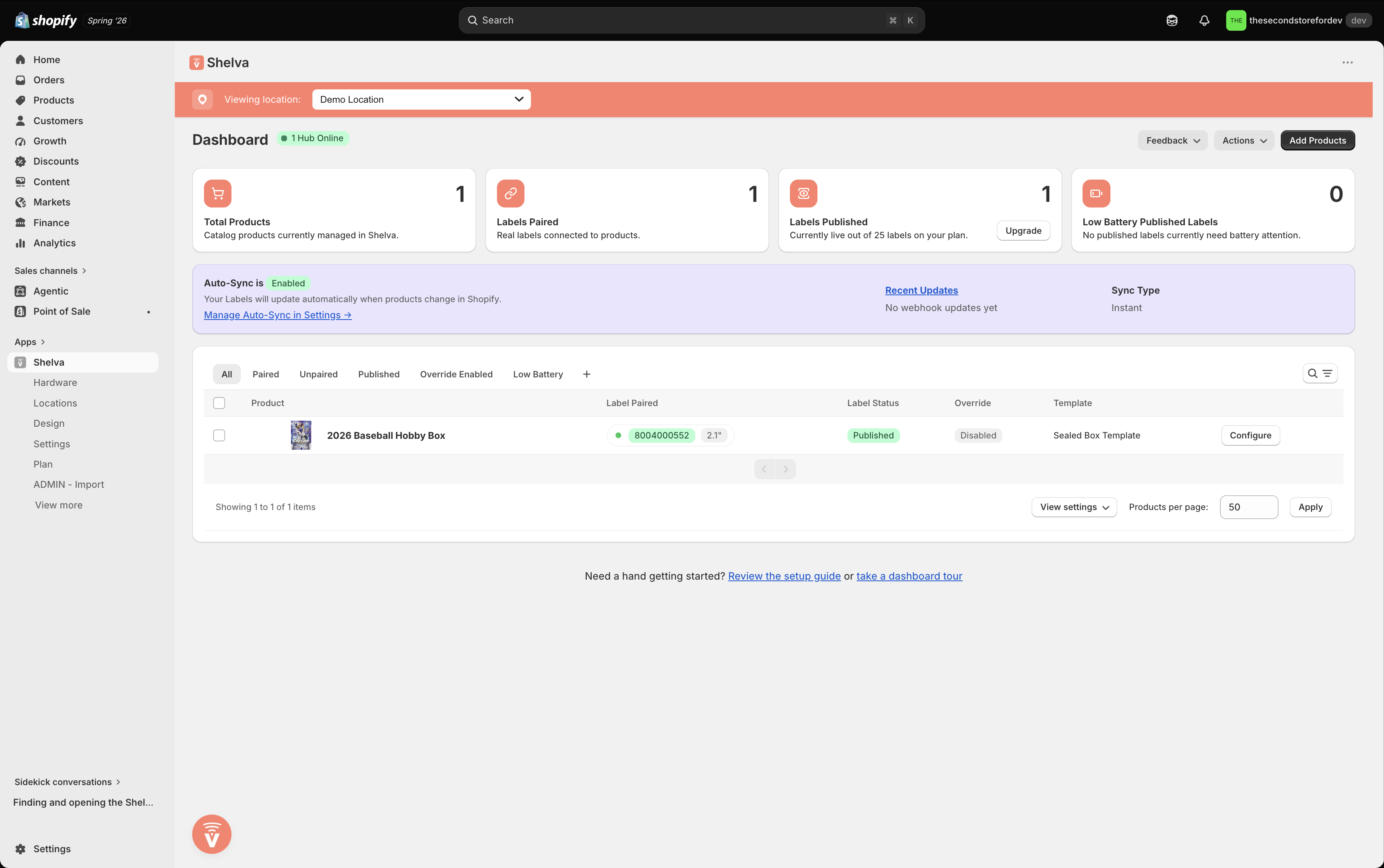
A managed product appears with its product data, label state, and Configure action.

The product row keeps the label assignment and publishing status visible.