
Shopify POS
Use Shelva in Shopify POS
Give store staff a mobile workflow for finding, pairing, publishing, flashing, and reviewing labels from Shopify POS.
Before you begin
Confirm these items before you make changes:
- Shelva is installed for the Shopify store.
- The POS device is assigned to the intended store location.
- Shelva’s POS extension can be enabled in Shopify Admin.
- The staff member can edit the Shopify POS smart grid or a manager can add the Shelva Quick Actions tile.
- Camera permission is enabled if staff will scan printed label barcodes.
Enable Shelva and add the Quick Actions tile
Shelva’s POS extension and the Shelva Quick Actions tile are enabled in different places:
POS extension
Enable the Shelva extension from Shopify Admin so its POS features are available to the store.
Shelva Quick Actions tile
Add this tile to the smart grid from within the Shopify POS app.
Enable the extension in Shopify Admin
- Open Shopify Admin.
- Go to Sales channels → Point of Sale → Settings → POS apps.
- Open Shelva: Digital Shelf Labels.
- Enable the Shelva POS extension and save the change.
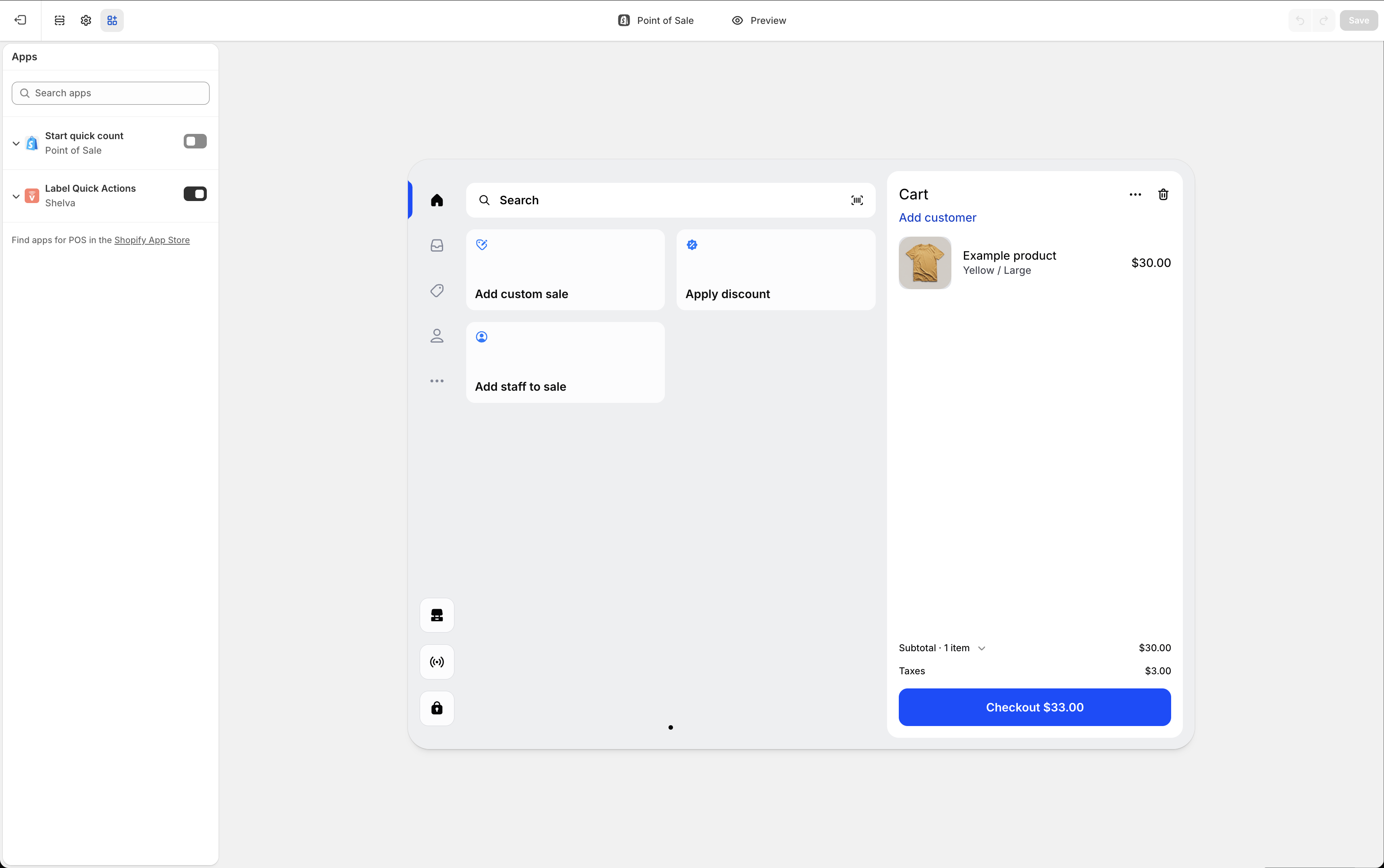
Enable Shelva’s POS extension in Shopify Admin, then save the change.
Add Shelva Quick Actions in Shopify POS
- Open Shopify POS on the store device.
- Edit the POS smart grid.
- Add the Shelva Quick Actions tile and save the layout.
Use Shelva Quick Actions
The command center shows the current location, labels needing attention, online Hub count, and total and published label counts.
- Find Label
- Pair & Publish Label
- Low Battery
- Low Signal
- Review Broken
Find a label by barcode
- Select Find Label.
- Scan the printed label barcode or enter it manually.
- Review size, pairing, publish, battery, signal, and broken status.
- Choose an available action: Flash, Publish, Unpair, pair to a product, or Mark Broken.
Pair and publish in POS
- Scan or enter the label barcode.
- Search by product title, SKU, barcode, or vendor.
- Select the parent product or variant.
- Confirm Pair and Publish.
- If the label is already paired, review the current product and explicitly confirm Replace and Publish.
Use product-level actions
From a product, staff can add it to Shelva, Pair and Publish, Add Another Label, Flash, Sync and Publish, Reassign Label, Unpair, or Mark Broken.
What success looks like
The Shelva Quick Actions tile opens at the correct location, barcode lookup finds the expected label, and permitted actions complete without requiring staff to open Shopify Admin.