
Getting started
Getting Started with Shelva
Add a product, pair a simulated or physical label, review its design, and publish it when physical hardware is connected.
Before you begin
Confirm these items before you make changes:
- Shelva is installed in Shopify.
- For physical labels, at least one Shopify location is active and enabled in Shelva.
- For physical labels, a Shelva Hub is connected to power and Ethernet and shows Online.
- At least one Shelva label is assigned to the store when following the physical path.
Choose a setup path
Simulated labels
Explore Shelva immediately with preview-only labels. No physical hardware or Hub is required.
Physical labels
Send real product designs to the shelf. Shelva labels and an online Shelva Hub are required.
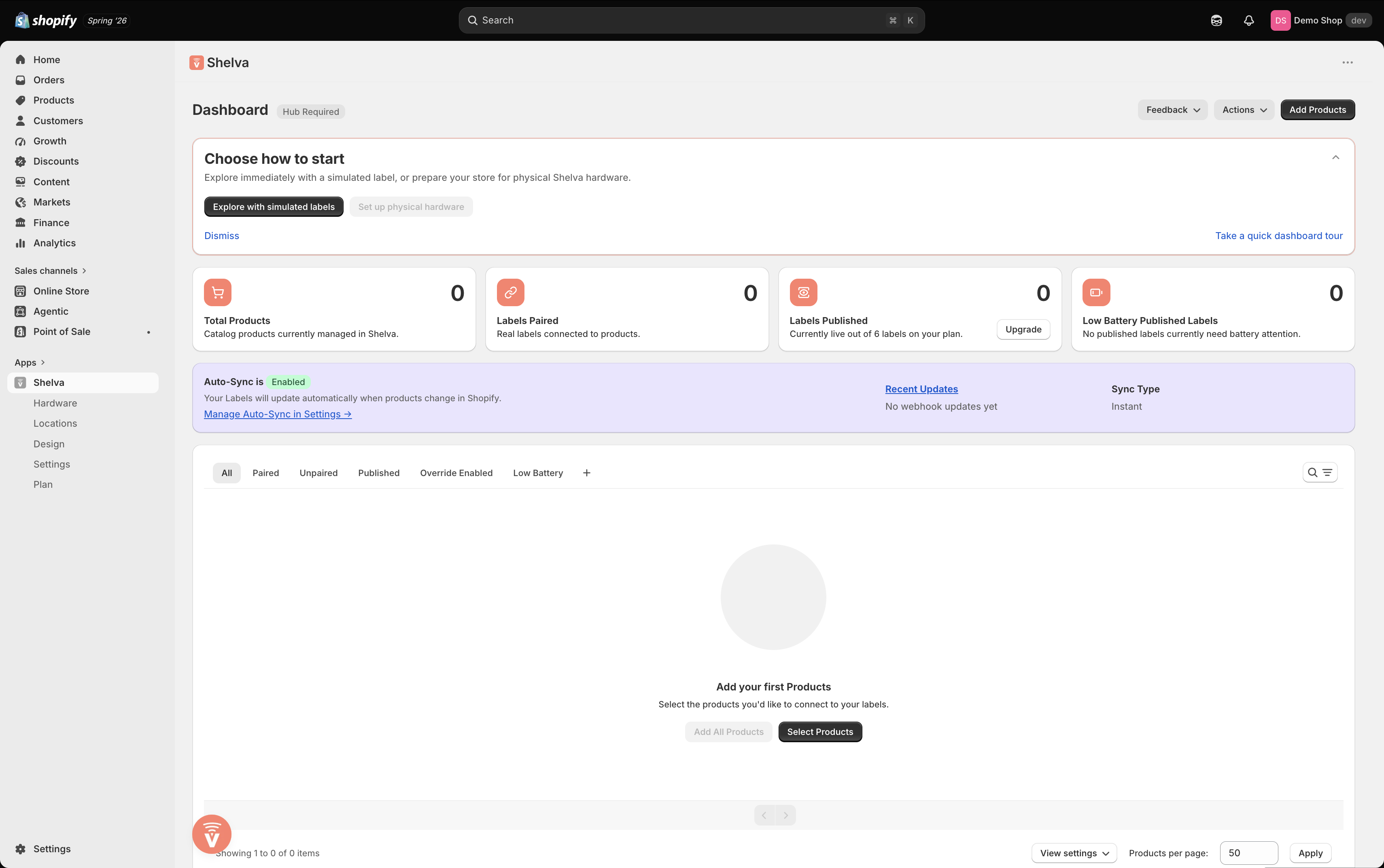
The Shelva walkthrough lets you start with a simulated label or connected Shelva hardware.
Complete your first-label workflow
Follow the same sequence shown in the in-app Shelva Walkthrough:
- Open Shelva and select Add Products.
- Choose a Shopify product or variant and confirm your selection.
- Select Pair Label, then choose a physical label or Simulated Label.
- Open Design and review the template for that label size.
- For a physical label, confirm the Hub shows Online, then select Save & Publish.
You can optionally open Overrides afterward to customize only this product without changing its Shopify data.
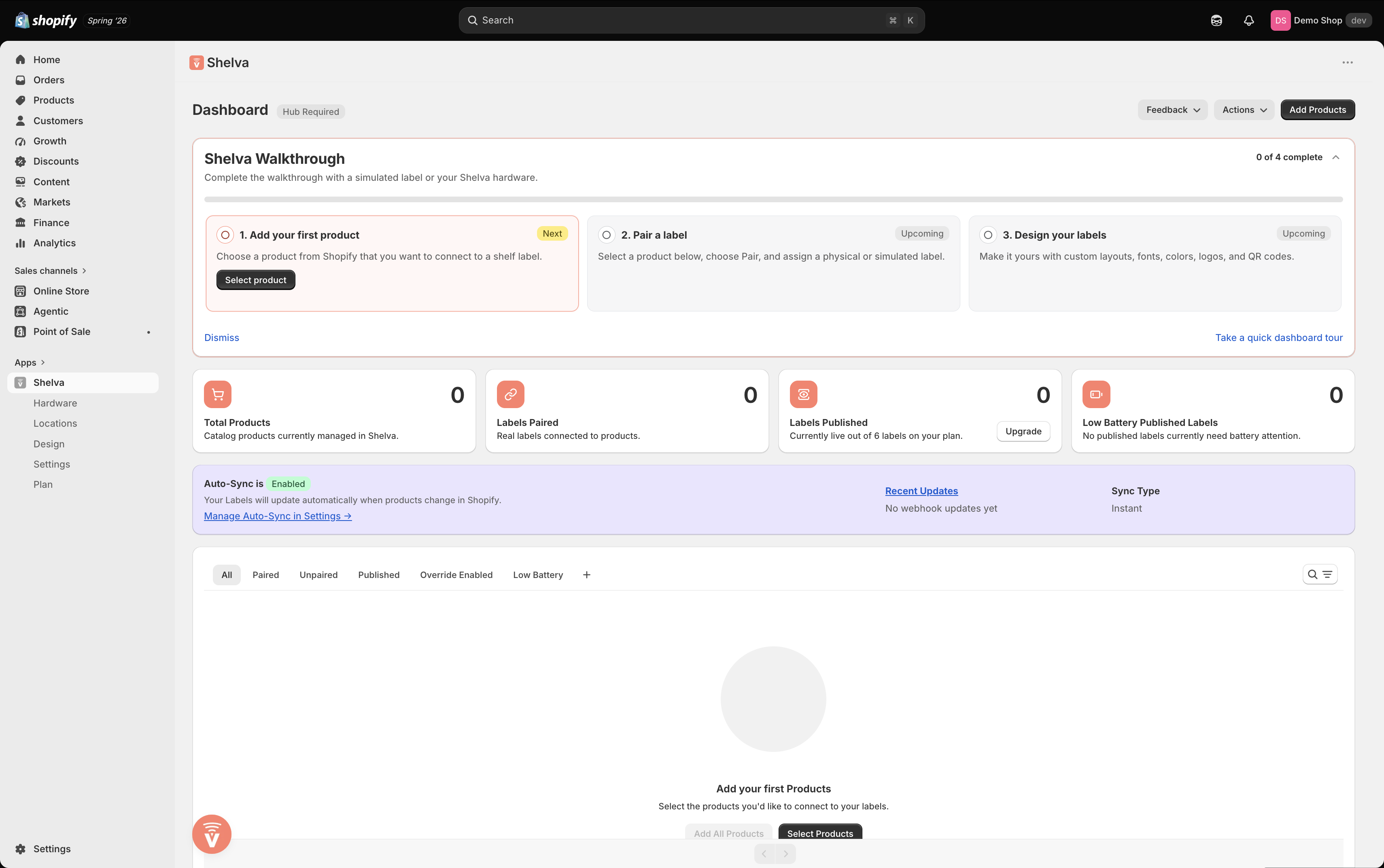
The Dashboard walkthrough keeps the add, pair, and design steps together.
Understand label states
The label is assigned to the product. This does not confirm that its display was updated.
Shelva is sending the current design to a physical label.
The physical label received the design successfully.
The attempt did not complete and needs attention before the shelf is current.
The label is preview-only. Shelva does not send a physical command.
What success looks like
Your product appears on the Dashboard with the intended label assignment and a correct preview. A physical label shows Published; a simulated label shows an updated preview without a hardware command.